How to use platformio for esp32 development

首先第一步,安装vscode

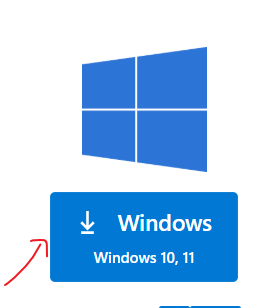
vscode下载

点击下载,然后一直确认就可以了。
vscode

然后安装platformio扩展,在vscode中,点击左下角 extensions,搜索platformio,然后安装platformio。
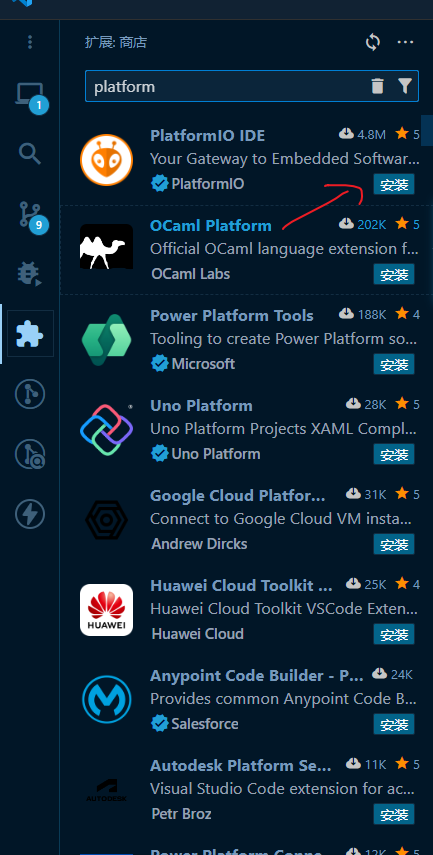
platformio

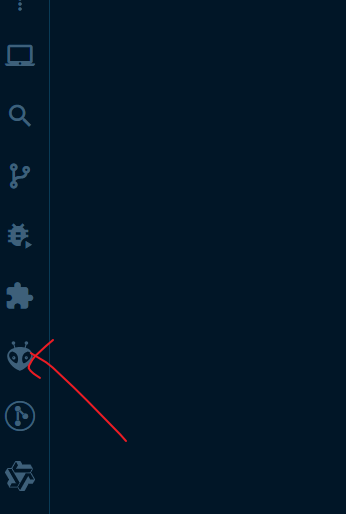
安装成功后会多一个图标
图标

点击该图标就会开始初始化platformio ide,然后等待一段时间。
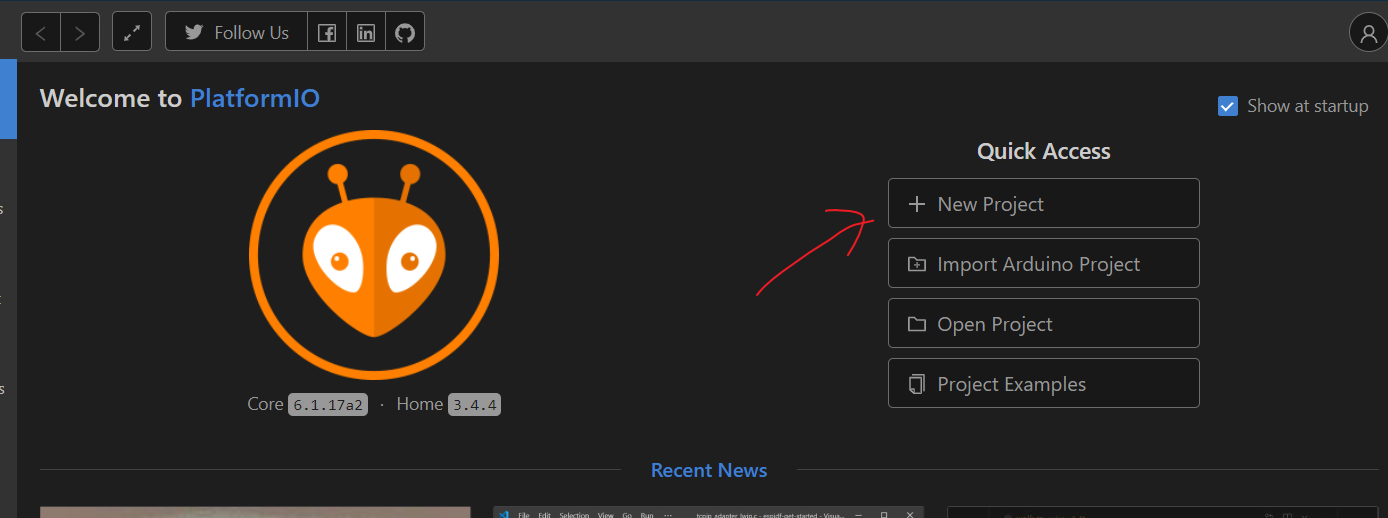
点击open
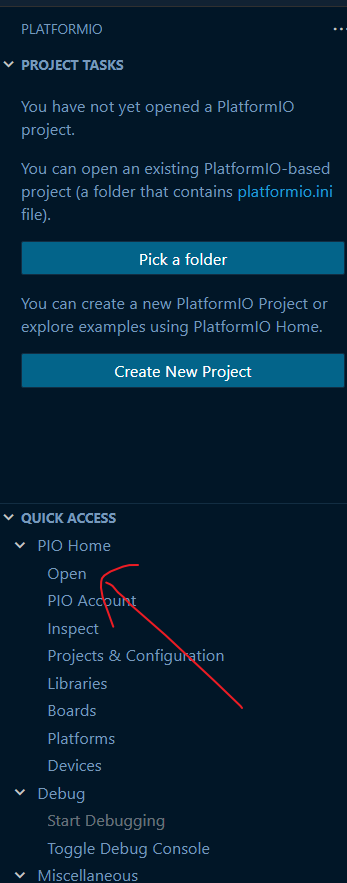
open

点击new project
new project

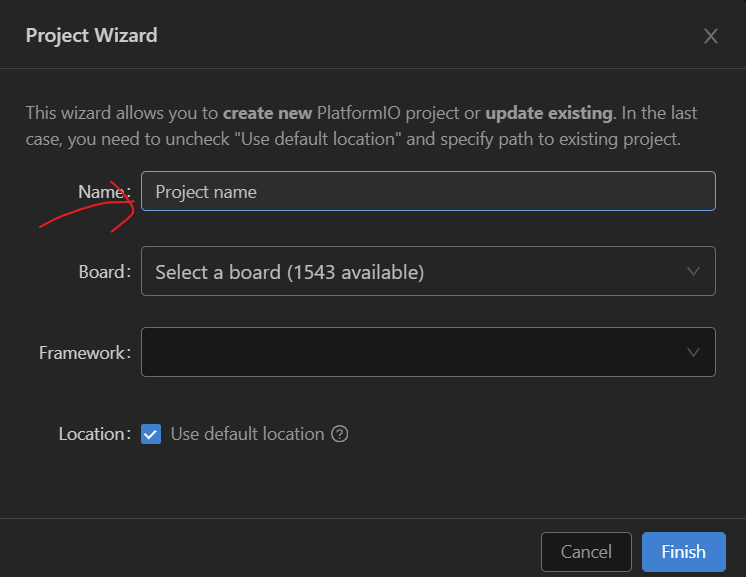
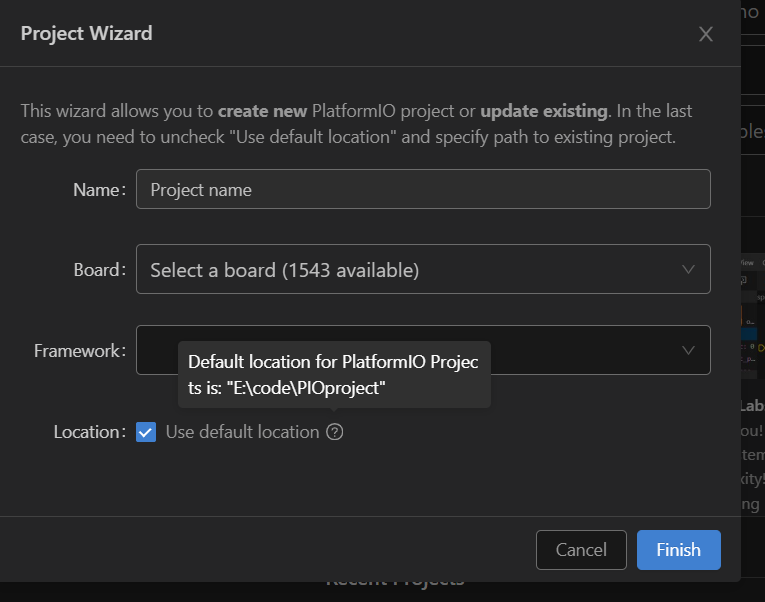
输入项目名称,自己随便取一个
name

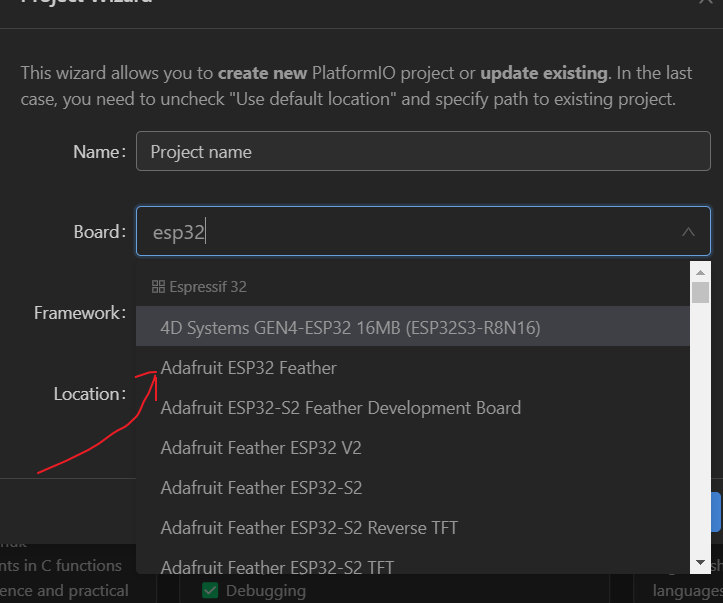
选择esp32开发板
esp32

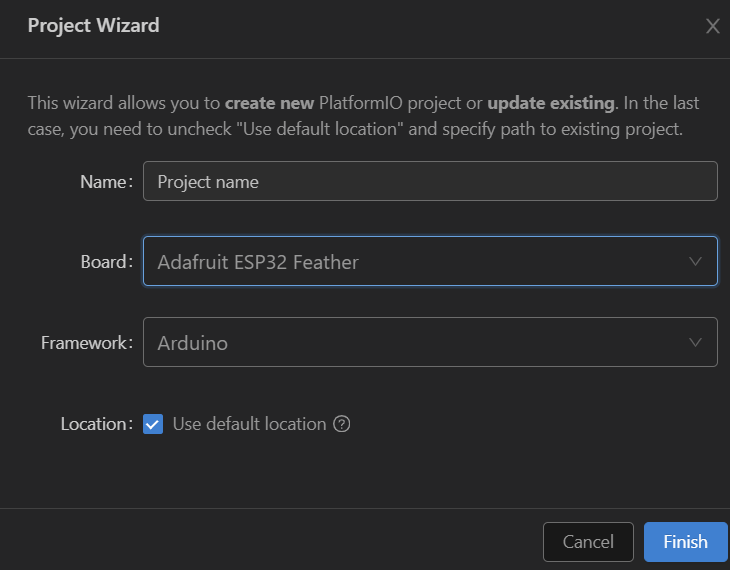
框架选择arduino
alt text

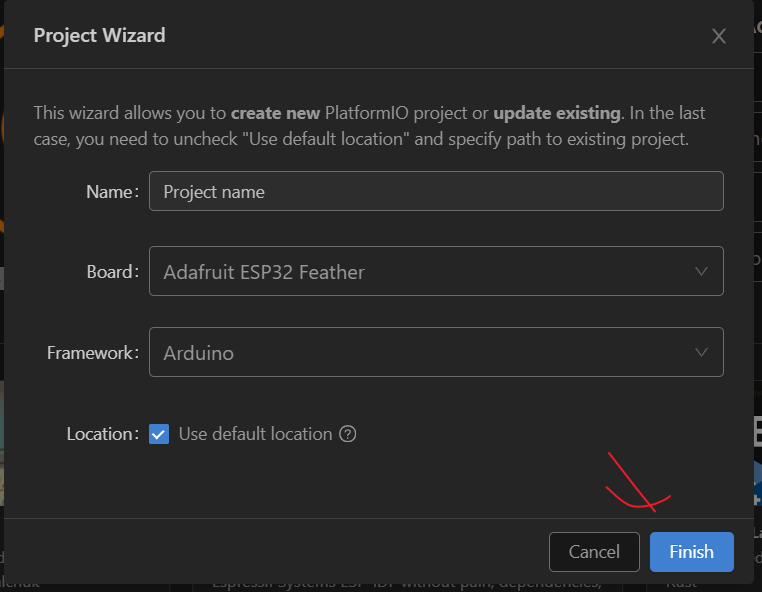
点击finish
finish

然后等待,这个等待时间可能有点长,因为要下载一些文件。

创建完成,就会自动打开一个新窗口,里面就是我们刚刚创建好的项目。
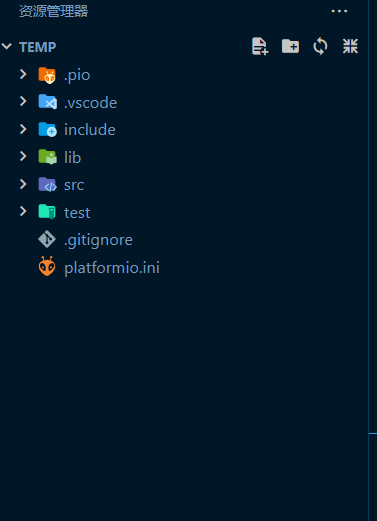
目录

如果没有打开,就找到项目的默认路径,用vscode打开文件夹即可。
没有打开

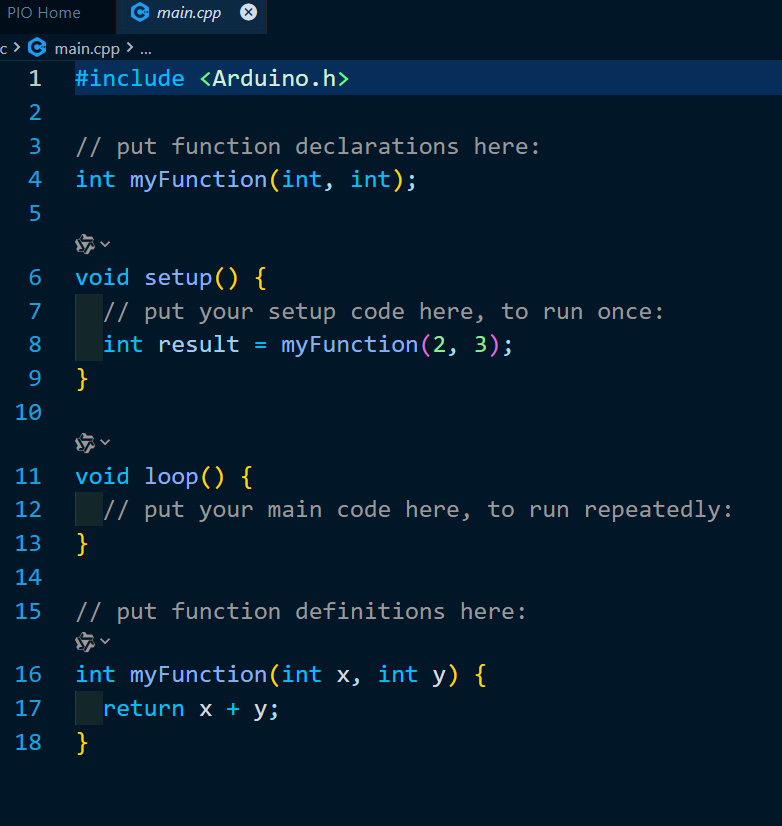
src目录下就是我们的代码了,可以打开main.cpp
main

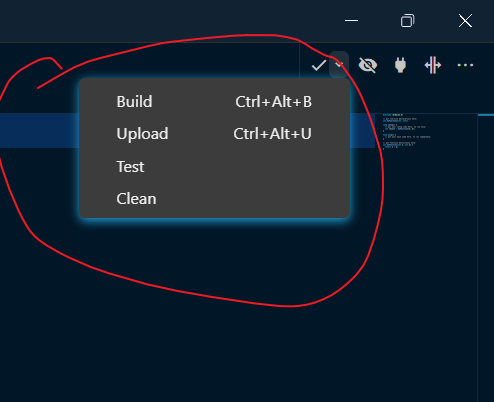
右上角Build就是编译项目,Upload就是上传到开发板。
upload

整个安装的过程就是大概是这样的。

然后我在分享一下一些有关esp32开发的经验。
很多时候,进行嵌入式开发时,其实就是在开发外设的驱动程序,也就是单片机如何与外设进行交互。
而这种交互很多时候就表现在数据的传输上,所以其实最重要的就是要了解各个接口使用的通讯协议是什么
以及如何实现这些通讯协议(例如I2C,SPI,UART等等)。
而在使用arduino框架开发esp32时,其实有很多现成的库可以供我们使用。
所以其实开发起来是非常轻松的(相较于其它框架来说,个人的目前感觉)。
举个例子吧:
当你拿到外设模块时,你可以查看它的名称,例如有一个模块叫做max10302的测量心血氧的模块
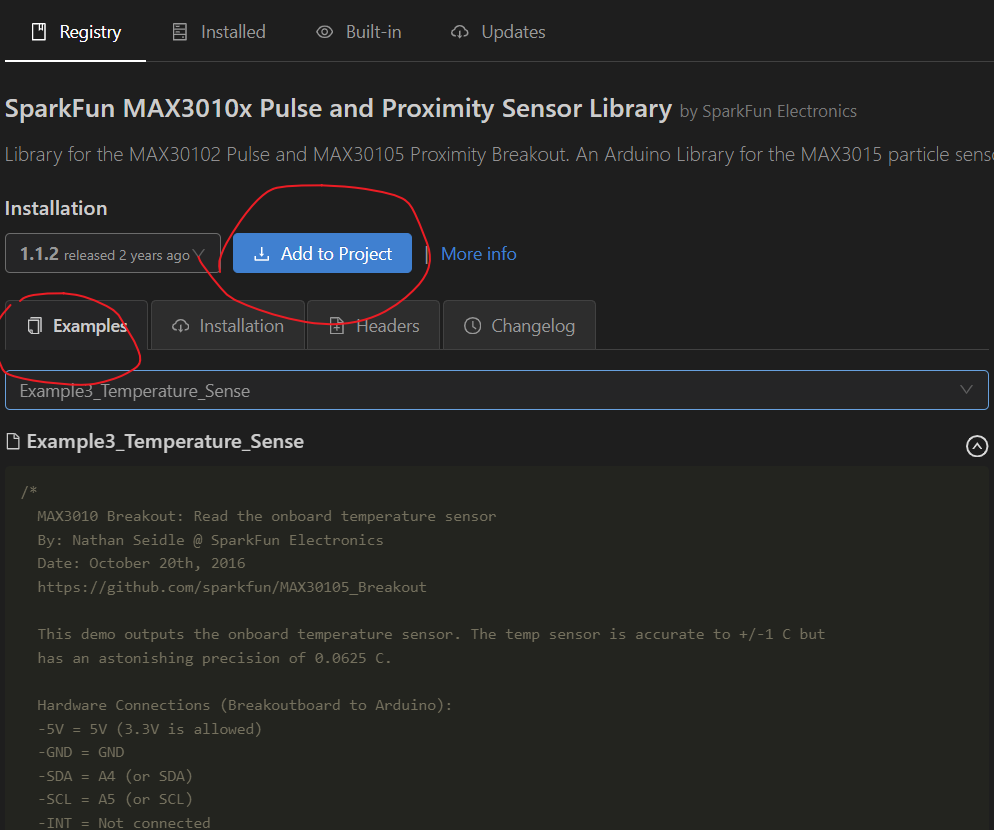
你可以打开platformio的library界面然后搜索该模块
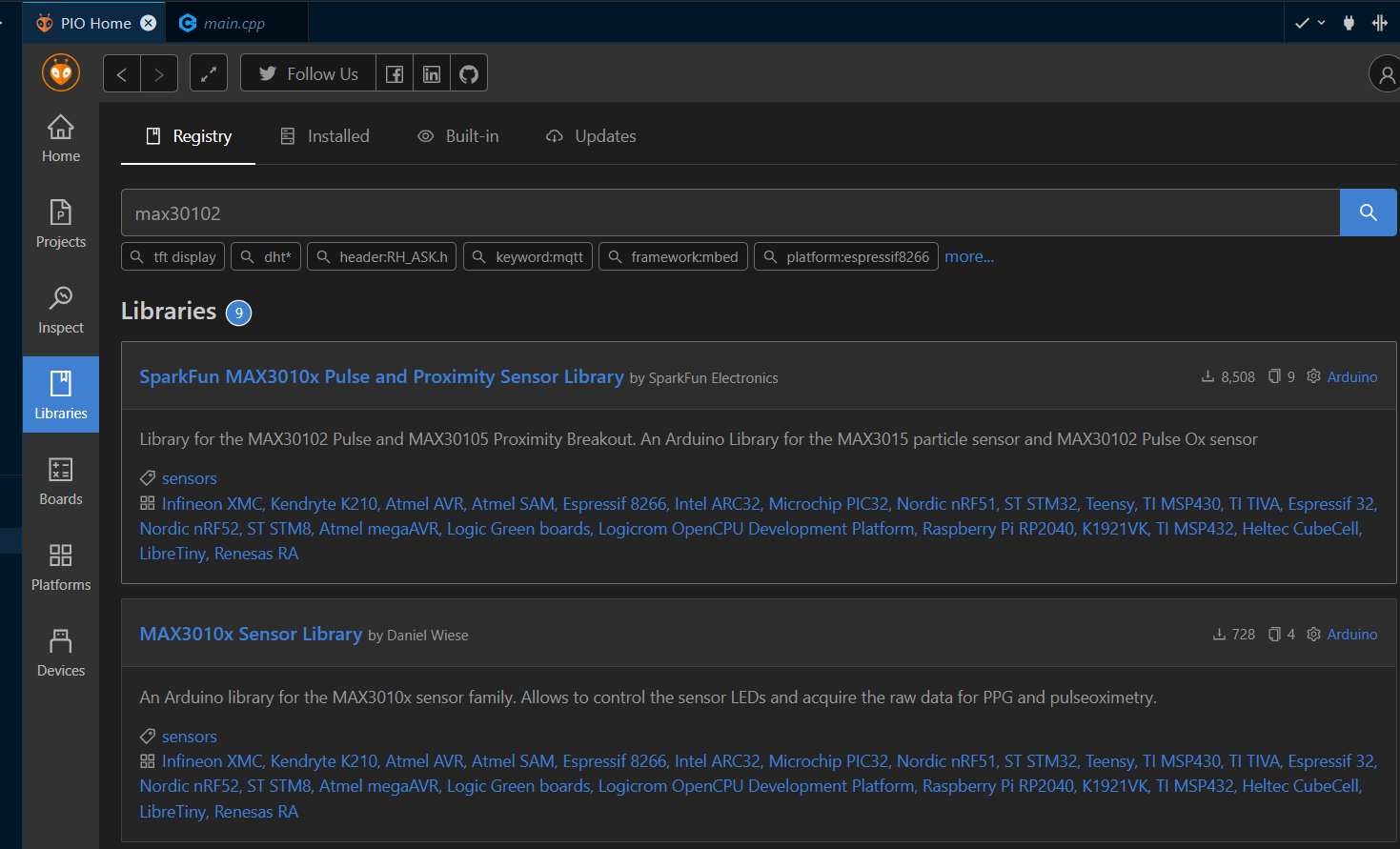
libraries

然后点击addproject选择你的项目把该模块添加进去进去就可以了。
example

然后使用的话可以参考该模块的示例代码
通过代码都会提供该接口是如何获取数据的(有一定c++基础的应该基本都能看懂个大差不差)。
下面是max30102模块的示例代码
在示例代码中,一般都会说明接线是怎么连的,还有需要初始化构造哪些对象,还有如何获取数据等等。

1
2
3
4
5
6
7
8
9
10
11
12
13
14
15
16
17
18
19
20
21
22
23
24
25
26
27
28
29
30
31
32
33
34
35
36
37
38
39
40
41
42
43
44
45
46
47
48
49
50
51
52
53
54
55
56
57
58
59
/*
MAX3010 Breakout: Read the onboard temperature sensor
By: Nathan Seidle @ SparkFun Electronics
Date: October 20th, 2016
https://github.com/sparkfun/MAX30105_Breakout

This demo outputs the onboard temperature sensor. The temp sensor is accurate to +/-1 C but
has an astonishing precision of 0.0625 C.

Hardware Connections (Breakoutboard to Arduino):
-5V = 5V (3.3V is allowed)
-GND = GND
-SDA = A4 (or SDA)
-SCL = A5 (or SCL)
-INT = Not connected

The MAX30105 Breakout can handle 5V or 3.3V I2C logic. We recommend powering the board with 5V
but it will also run at 3.3V.
*/

#include <Wire.h>

#include "MAX30105.h" //Get it here: http://librarymanager/All#SparkFun_MAX30105
MAX30105 particleSensor;

void setup()
{
Serial.begin(9600);
Serial.println("Initializing...");

// Initialize sensor
if (particleSensor.begin(Wire, I2C_SPEED_FAST) == false) //Use default I2C port, 400kHz speed
{
Serial.println("MAX30105 was not found. Please check wiring/power. ");
while (1);
}

//The LEDs are very low power and won't affect the temp reading much but
//you may want to turn off the LEDs to avoid any local heating
particleSensor.setup(0); //Configure sensor. Turn off LEDs
//particleSensor.setup(); //Configure sensor. Use 25mA for LED drive

particleSensor.enableDIETEMPRDY(); //Enable the temp ready interrupt. This is required.
}

void loop()
{
float temperature = particleSensor.readTemperature();

Serial.print("temperatureC=");
Serial.print(temperature, 4);

float temperatureF = particleSensor.readTemperatureF(); //Because I am a bad global citizen

Serial.print(" temperatureF=");
Serial.print(temperatureF, 4);

Serial.println();
}

然后就是通过网络将这些数据传输到电脑上,这一个过程可以通过搭建http服务器或者是tcp服务器实现。
(一般情况下可以通过将数据发送到串口去确认一下模块是否有问题。)
以下给出一段搭建http服务器的代码,可以看到是非常简单的。
整个流程就先创建一个webserver对象,然后连接wifi,初始化http服务器接收到请求时需要调用的函数,
然后启动服务器,然后在循环里等待客户端发送请求就可以了。同样的也可以建立tcp服务器。在互联网上都是可以找到相关代码的,直接问ai也基本上可以得到。而且如果是esp32arduino官方标准库的内容的话,在网上是很容易找到官方文档的,可以直接在官方文档中查看相关函数应该如何调用。在搜索的过程过程中还有可能看到用另一个框架esp-idf实现的一些代码,这一个框架的环境配置起来是比较困难的,而且需要对c语言有比较深的理解,所以在在查找或者是向ai询问相关内容使可以额外添加arduino关键词。
整一个开发的流程就是这个样子的,但是也有可能遇到找不到相关库的情况,这个时候就需要自己根据该外设的手册进行封装,进而与外设实现数据交互。

1
2
3
4
5
6
7
8
9
10
11
12
13
14
15
16
17
18
19
20
21
22
23
24
25
26
27
28
29
30
31
32
#include <WiFi.h>
#include <WebServer.h>

const char* ssid = "your_SSID";
const char* password = "your_PASSWORD";

WebServer server(80);

void handleRoot() {
server.send(200, "text/html", "<h1>Hello from ESP32!</h1>");
}

void setup() {
Serial.begin(115200);

WiFi.begin(ssid, password);
while (WiFi.status() != WL_CONNECTED) {
delay(500);
Serial.print(".");
}
Serial.println("");
Serial.println("WiFi connected.");

server.on("/", handleRoot);

server.begin();
Serial.println("HTTP server started.");
}

void loop() {
server.handleClient();
}
作者

axgn

发布于

2024-11-29

更新于

2025-12-23

许可协议